- Free Shipping for orders over $249*

- +1 800-943-2341
- Aptika.com

- Aptika.ca
- Currency: USD
 My Account



How to Adjust the YMC and K Power in Your Magicard Driver
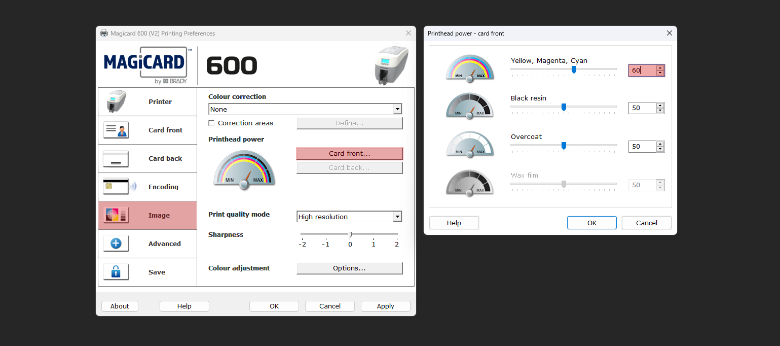
Print quality issues on a Magicard printer can often be improved by adjusting the YMC and K power settings in the printer driver. These settings control the amount of heat applied when printing color and black elements on the card.
YMC refers to the color panels of the ribbon: Yellow, Magenta, and Cyan. K refers to the black resin panel used for printing sharp black text, barcodes, and other black elements.
Before You Start
Before changing these settings, make sure you are logged in to Windows as an administrator. Some driver settings may not be available or may not save correctly without administrator access.
To open the Magicard printer driver settings:
- Go to "Devices and Printers" in the Windows Control Panel.
- Right-click the Magicard printer driver and select "Printing preferences".
If you have already made modifications to the printer driver settings, it may be a good idea to reset the printer driver to its default values before continuing.
- Click "Save" in the left-hand column.
- Click "Restore factory defaults...".
- Click "OK" to apply the changes.
Adjusting the YMC Power
The first setting to adjust is the YMC power. Increasing this value can help improve light or faded color printing.
- Click "Image" in the left-hand column.
- Click "Card Front".
- Increase the "YMC" value to 60.
- Click "OK" to save the changes.
Adjusting the K Power
For K (black) printing, you can also increase the K power value to 60. This can help improve black text, barcodes, logos, and other black printed elements.
Testing the Print Quality
Do not increase the YMC or K power too much. Applying too much heat may damage or cut the ribbon.
After adjusting the YMC or K power, print a test card. If the print quality is still too light, increase the value slightly and test again.
Image Quality and Print Resolution
Print quality is also directly related to the quality of the image used in your badge design. We recommend using high-quality PNG or TIFF images whenever possible.
Most card printers print at 300 DPI, which means 300 dots per inch. Your image resolution should match the final printed size of the image on the card.
For example, if an image is printed at 1 inch wide by 0.5 inch high, the image should be at least 300 x 150 pixels in PNG format. If the image resolution is lower than that, the print quality may appear blurry, pixelated, or poor.
If you are printing at 600 DPI, double the resolution. For example, an image printed at 1 inch wide by 0.5 inch high should be at least 600 x 300 pixels.
Tagged on: magicard, print quality, print head power, ymc