- Free Shipping for orders over $249*

- +1 800-943-2341
- Aptika.com


- Aptika.ca

- Currency: USD
 My Account



How to Switch a MagTek Magnetic Stripe Reader Between HID and Keyboard Wedge Mode
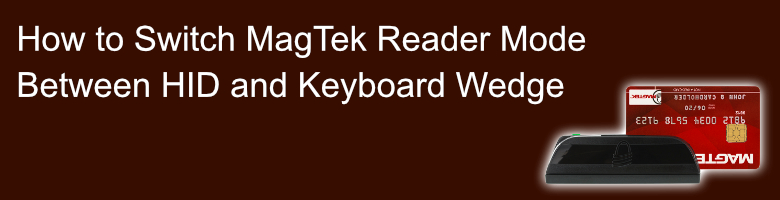
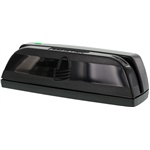
MagTek magnetic stripe readers, such as the Dynamag, MagneSafe Mini, SureSwipe, or Full Size Swipe Card Reader, can operate in two distinct USB modes: HID mode or Keyboard Wedge mode, also known as Keyboard Emulation. If your reader is recognized by Windows but card data is not populating correctly in your software, you may need to change this device mode manually using MagTek's USBMSR utility.
This guide walks you through sending the exact hex commands required to switch modes back and forth using MagTek's USBMSR software.
Note: This article is intended for Windows users. The MagTek USBMSR Demo utility used in this guide is a Windows application.
1. Preparation & Setup
Before beginning, download the official Windows testing and configuration utility from MagTek:
- Go to the MagTek Support Page:
https://www.magtek.com/support/ - Download and install: Demo Program, USB Swipe & Insert Reader - PN99510026 - v 202
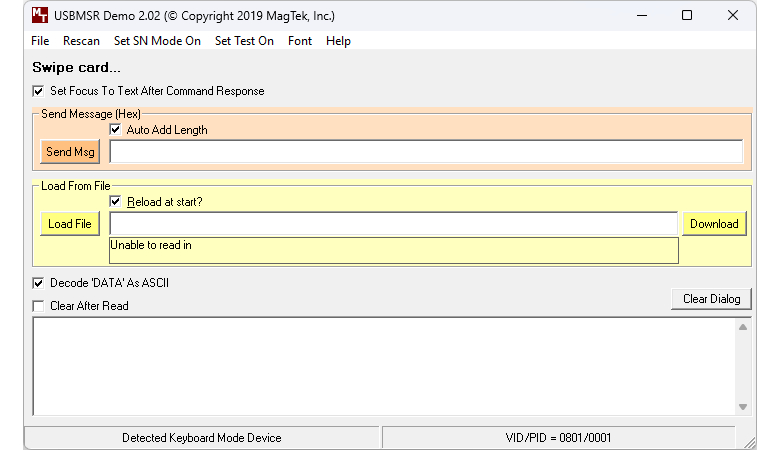
Launch the USBMSR Demo application. After a few seconds, look at the bottom status bar of the window. The software will display your current connection state: either Detected HID Mode Device or Detected Keyboard Mode Device.
2. Send the Mode Command
Depending on which direction you need to convert your reader, locate the Send Message (Hex) field in the USBMSR utility and use one of the following commands:
To Switch from HID to Keyboard Wedge Mode:
Enter the following hex string and click Send Msg:
01 10 01
To Switch from Keyboard Wedge to HID Mode:
Enter the following hex string and click Send Msg:
01 10 00
3. Apply Changes (Crucial Step)
Sending the mode command alone will not change how the device behaves. The reader must be reset to apply the new configuration.
Important: Do not click the Rescan button instead of resetting the reader. The Rescan button only forces the software to look for devices; it does not trigger the internal hardware reset required by the reader.
To finalize the change, enter the reset command in the Send Message (Hex) field and click Send Msg:
02
The reader will reset. Give Windows and the USBMSR software a few seconds to redetect the hardware. The status bar at the bottom should now reflect the new device mode.
4. Test Your MagTek Card Reader
You can verify the new mode immediately. Swiping a card successfully will flash a green status light on the hardware.
- In HID Mode: Data will populate directly inside the USBMSR Demo dialog box, but will not type into standard text editors.
- In Keyboard Wedge Mode: The reader acts exactly like an automated keyboard, streaming data into any active text cursor field.
To test your Keyboard Wedge mode output, click inside the test box below to focus it, then swipe a card.
If the reader is in Keyboard Wedge mode, the card data should appear in the box above after you click inside it and swipe a card.
Why This Matters
Manually changing the USB mode gives you complete deployment flexibility without needing to purchase an entirely new hardware unit. Often, specific MagTek hardware models are shipped pre-configured to a single default setting, but the underlying hardware supports both modes.
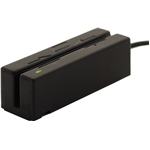
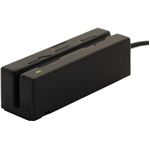
For instance, the MagTek Mini Swipe Reader USB (Tracks 1, 2, and 3) model 21040102 ships as HID by default, while model 21040108 ships as Keyboard Wedge. Using this configuration utility, either model can be quickly adapted to fit your exact software environment.
Disclaimer
This article is provided for informational purposes only. Changing the configuration of a MagTek reader is done at your own risk. Aptika is not responsible for any incorrect configuration, communication issue, device malfunction, or damage that may occur while using these commands. If you are unsure, contact MagTek support or a qualified technician before changing the device configuration.
Looking for reliable hardware? Aptika stocks a complete line of MagTek magnetic stripe readers ready for secure deployment.
Tagged on: magtek, hid mode, keyboard wedge mode, dynamag, magnesafe, sureswipe, magstripe, magnetic stripe reader